
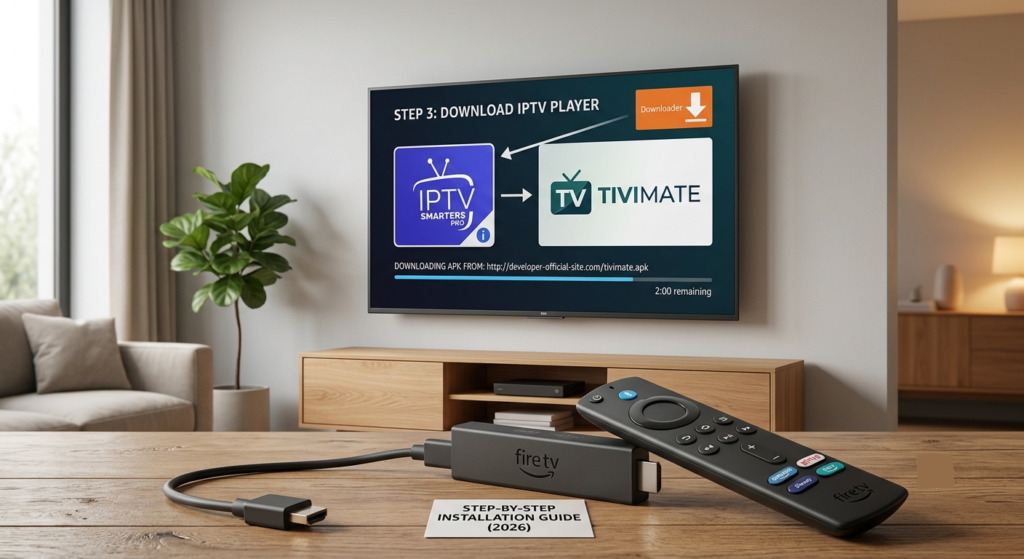
Learn how to install IPTV on Firestick safely in 2026. This step-by-step guide covers enabling sideloading, using the Downloader app, and setting up a licensed IPTV player.
Streaming has changed the way we watch television, and IPTV (Internet Protocol Television) is one of the most flexible ways to bring live channels and on-demand content to your TV. If you own an Amazon Firestick, you can turn it into a full IPTV player in just a few minutes. This guide walks you through the entire process — from preparing your device to installing a player app and loading your channel list — while flagging the things you need to watch out for along the way.
What Is IPTV, and How Does It Work on Firestick?
IPTV delivers television content over an internet connection rather than through traditional cable or satellite signals. Instead of a cable box, you use an app (often called an IPTV “player”) that reads a channel list, or playlist, usually in M3U format, supplied by your IPTV provider.
Firestick is a great fit for IPTV because it runs on Fire OS, a modified version of Android. That means it can support popular IPTV player apps like IPTV Smarters Pro, TiviMate, and Perfect Player, either directly from the Amazon Appstore or by sideloading the APK file.
Important: IPTV itself is completely legal technology — it’s simply a delivery method. What matters is the content you stream through it. Always use a licensed, subscription-based IPTV provider (many cable companies, YouTube TV, Hulu + Live TV, and regional broadcasters now offer official IPTV apps). Unlicensed services that redistribute copyrighted channels without permission are illegal in most countries, and using them can expose you to security risks like malware-laced APKs. When in doubt, check a provider’s licensing before subscribing.
What You’ll Need Before You Start
- A Firestick or Fire TV device connected to Wi-Fi
- An Amazon account signed in on the device
- A subscription (or free trial) with a legitimate IPTV provider, including your M3U playlist URL or login credentials — if you don’t have one yet, you can check out our IPTV plans at TivaStream
- Optional but recommended: a VPN for added privacy while streaming
Step 1: Enable Apps from Unknown Sources
Because most IPTV player apps aren’t listed in the official Amazon Appstore, you’ll need to allow your Firestick to install apps from outside sources.
- From the Firestick home screen, go to Settings.
- Select My Fire TV (or Device, depending on your software version).
- Choose Developer Options.
- Turn on Apps from Unknown Sources and ADB Debugging.
- Confirm by selecting Turn On when prompted.
Note: Amazon’s newest Firestick models running “Vega OS” no longer support sideloading apps outside the Amazon Appstore. If your device falls into this category, you’ll be limited to IPTV apps available directly in the Appstore.
Step 2: Install the Downloader App
The Downloader app is the standard tool used to sideload APK files onto a Firestick. It’s free, safe, and available directly through the Amazon Appstore.
- From the Firestick home screen, hover over the Search icon.
- Type Downloader and select it from the results.
- Choose the official Downloader app (published by AFTVnews) and select Get or Download.
- Once installed, open the app and allow any requested permissions.
You can also find Downloader listed directly on the Amazon Appstore.
Step 3: Choose and Sideload an IPTV Player App
There are several reputable IPTV player apps compatible with Firestick. The two most widely used are:
- IPTV Smarters Pro – User-friendly interface, supports M3U links and Xtream Codes login
- TiviMate – Popular for its polished EPG (electronic program guide) and channel-grouping features
To sideload an app using Downloader:
- Open the Downloader app.
- Enter the direct APK URL provided by the app developer (for example, TiviMate and IPTV Smarters both publish official download links on their websites).
- Select Go and wait for the file to download.
- Once downloaded, select Install.
- When installation finishes, choose Done, then delete the APK file when prompted to free up storage.
Step 4: Add Your IPTV Playlist
After installing your chosen player app, you’ll need to connect it to your IPTV provider.
- Open the IPTV player app you just installed.
- Select Add Playlist or Login.
- Choose your input method:
- M3U URL – paste the playlist link your provider gave you
- Xtream Codes API – enter your server URL, username, and password
- Save the playlist. The app will load your channel list and program guide automatically.
- Browse categories or use the search function to find specific channels.
Step 5: Set Up an Electronic Program Guide (Optional)
Most quality IPTV apps support EPG data, which shows what’s currently airing and what’s coming up next, much like a traditional cable guide.
- In your app’s settings, look for EPG Settings or Guide Source.
- Enter the EPG URL provided by your IPTV service (often a separate XMLTV link).
- Save your settings and allow the guide time to sync — this can take a few minutes on the first load.
Troubleshooting Common IPTV Firestick Issues
| Problem | Likely Cause | Fix |
|---|---|---|
| Buffering or freezing | Weak Wi-Fi signal | Move router closer, use a wired Ethernet adapter, or upgrade your internet plan |
| Playlist won’t load | Expired subscription or wrong URL | Double-check your M3U link and confirm your subscription is active |
| App won’t install | Unknown Sources disabled | Revisit Step 1 and confirm Developer Options are turned on |
| No EPG data | Missing or incorrect XMLTV link | Re-enter the EPG URL from your provider |
| App crashes on Firestick | Outdated app version | Uninstall and reinstall the latest APK from the developer’s official site |
Tips for the Best IPTV Streaming Experience
- Use a wired connection where possible, or place your router close to the Firestick for a stronger signal.
- Restart your Firestick regularly to clear cached data and free up memory.
- Keep your player app updated by checking the developer’s official website periodically.
- Stick to licensed providers — legitimate services offer better reliability, customer support, and no legal gray areas.
- Consider a VPN if privacy is a priority, especially on public or shared networks.
Frequently Asked Questions
Is IPTV legal on Firestick? Yes — IPTV is a legal streaming technology. Legality depends entirely on whether the specific content provider is licensed to distribute the channels or shows in your playlist.
Do I need to jailbreak my Firestick to install IPTV apps? No. “Jailbreaking” isn’t necessary. You only need to enable sideloading through Developer Options, which is a standard, reversible setting.
Can I install IPTV directly from the Amazon Appstore? Some IPTV apps, including certain versions of IPTV Smarters, are available directly in the Amazon Appstore, which skips the sideloading process entirely.
What’s the difference between M3U and Xtream Codes login? M3U is a simple playlist file format, while Xtream Codes uses a server URL plus username and password to pull channels, guide data, and account info dynamically.
Final Thoughts
Installing IPTV on your Firestick is a straightforward process once you understand the sideloading workflow: enable Unknown Sources, install Downloader, sideload a player app, and connect your playlist. The key to a smooth, trouble-free experience is choosing a licensed IPTV provider and keeping your apps updated. With the right setup, your Firestick can rival — or beat — a traditional cable box for flexibility and channel variety.
Check out our related posts on
>> How to Choose the Right IPTV Provider in 2026 (And Why Quality Matters)
>> How To Fix IPTV Buffering (And How a Quality IPTV Provider Fixes It In 2026)
>> IPTV Smarters Login Failed: 11 Proven Fixes That Actually Work (2026 Guide)
to get the most out of your setup.