
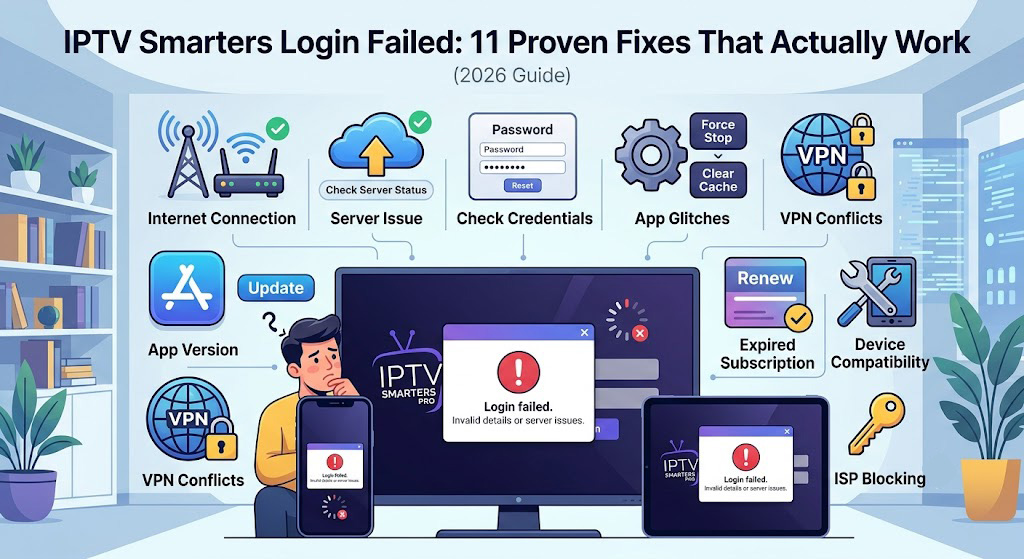
Getting an “IPTV Smarters login failed” error? Learn exactly why it happens and follow 11 step-by-step fixes to get your IPTV Smarters Pro app working again in minutes.
If you’ve opened IPTV Smarters Player and been greeted with a frustrating “Login Failed” message instead of your favorite channels, you’re not alone. This is one of the most common issues reported by IPTV Smarters users worldwide, and the good news is that it’s almost always fixable without contacting support.
In this guide, we’ll walk through every possible cause of the login failure and give you a clear, tested solution for each one — starting with the quickest fixes first.
Why Does IPTV Smarters Say “Login Failed”?
Before jumping into fixes, it helps to understand what’s actually happening. IPTV Smarters doesn’t store your channels itself — it pulls them from your IPTV provider’s server using credentials (username/password) or an M3U URL/Xtream Codes API. A login failure simply means the app couldn’t establish a valid connection between your device and that server.
The most common causes are:
- Incorrect username, password, or M3U URL
- An expired or suspended IPTV subscription
- The provider’s server being temporarily down
- No or unstable internet connection
- Outdated app version or corrupted cache
- Date/time settings mismatched on your device
- ISP blocking IPTV traffic
- Too many active connections on one account
- DNS or firewall restrictions
Let’s fix each of these one at a time.
1. Double-Check Your Login Credentials
This sounds obvious, but it’s the #1 cause of login failures. IPTV credentials are case-sensitive and often contain special characters that are easy to mistype.
How to fix it:
- Open the email or message from your IPTV provider containing your details.
- Copy and paste the username, password, or M3U URL directly instead of typing manually.
- Make sure there are no extra spaces before or after the text.
- If you’re using Xtream Codes login, verify the Server URL, Username, and Password fields are all filled in exactly as provided.
2. Confirm Your Subscription Hasn’t Expired
IPTV subscriptions typically run on monthly or yearly cycles. If your plan lapses, the server will reject login attempts even if your credentials are technically correct.
How to fix it:
- Log into your provider’s client panel (usually a link they sent you) to check your expiry date.
- Renew your subscription if needed.
- Contact your IPTV provider’s support channel to confirm your account status.
3. Check if the IPTV Server Is Down
Sometimes the problem isn’t on your end at all — the provider’s server may be experiencing downtime or maintenance.
How to fix it:
- Try logging in from a different device to see if the issue is device-specific or server-wide.
- Ask other users of the same provider (Reddit or Telegram groups are common places) if they’re experiencing the same issue.
- Wait 15–30 minutes and try again, as most server outages are resolved quickly.
4. Test and Stabilize Your Internet Connection
IPTV streaming requires a stable connection. Even brief drops can interrupt the authentication handshake and trigger a login failure.
How to fix it:
- Run a speed test using a tool like Speedtest by Ookla to confirm you have at least 15–25 Mbps for HD/4K streaming.
- Switch from Wi-Fi to a wired Ethernet connection if possible.
- Restart your router and modem.
- If you’re on mobile data, try switching to Wi-Fi (or vice versa).
5. Update IPTV Smarters to the Latest Version
Outdated app versions frequently lose compatibility with updated server protocols, leading to authentication errors.
How to fix it:
- Android/Fire TV: Update via the Google Play Store or Amazon Appstore.
- iOS: Update via the Apple App Store.
- Smart TV/Other devices: Check the manufacturer’s app store for available updates.
6. Clear App Cache and Data
A corrupted cache is a frequent, overlooked cause of persistent login errors.
How to fix it (Android):
- Go to Settings > Apps > IPTV Smarters Pro.
- Tap Storage.
- Select Clear Cache first, then Clear Data if the problem continues.
- Reopen the app and re-enter your login details.
On iOS, since cache clearing isn’t available the same way, uninstall and reinstall the app instead.
7. Fix Date and Time Settings on Your Device
This is a surprisingly common culprit. Many IPTV servers use time-based authentication tokens, and if your device’s clock is wrong, the login handshake fails.
How to fix it:
- Go to your device settings and enable Automatic Date & Time.
- Make sure your time zone is set correctly.
- Restart the app after adjusting.
8. Check for Too Many Active Connections
Most IPTV plans restrict you to one or two simultaneous device connections. If you’re logged in elsewhere, new login attempts may be rejected.
How to fix it:
- Log out of IPTV Smarters on any other devices using the same account.
- Contact your provider to ask about your plan’s connection limit.
- Consider upgrading your plan if you regularly need multiple simultaneous streams.
9. Disable VPN or Proxy (or Try Enabling One)
VPNs can help in some cases and cause problems in others, depending on how your ISP and provider handle IPTV traffic.
How to fix it:
- If you’re using a VPN, disable it and try logging in again.
- If you’re not using one and suspect ISP throttling (see below), try connecting through a reputable VPN service instead.
10. Check if Your ISP Is Blocking IPTV Traffic
Some Internet Service Providers throttle or block IPTV-related ports and domains, especially in regions with strict streaming regulations.
How to fix it:
- Try switching your DNS to a public option like Google Public DNS (8.8.8.8 / 8.8.4.4).
- Use a VPN to bypass ISP-level restrictions.
- Contact your ISP to ask if IPTV traffic is being restricted on your plan.
11. Reinstall IPTV Smarters Completely
If nothing else works, a clean reinstall resolves most deep-rooted app issues.
How to fix it:
- Uninstall IPTV Smarters Pro completely.
- Restart your device.
- Reinstall the app from an official source.
- Re-enter your credentials carefully.
Still Getting “Login Failed”? Contact Your Provider
If you’ve worked through every fix above and the error persists, the issue is very likely on your IPTV provider’s end — such as a banned account, blacklisted device ID, or backend server issue. At this point, reach out to your provider’s support team directly with a screenshot of the error message for the fastest resolution.
Frequently Asked Questions
Why does IPTV Smarters keep saying login failed even with correct details? This usually points to a server-side issue, an expired subscription, or a device connection limit being exceeded rather than incorrect credentials.
Does clearing cache delete my playlists? Clearing cache alone typically does not remove your saved playlists, but clearing app data will. Have your login details handy before doing this.
Can a VPN fix IPTV Smarters login issues? Yes, in cases where your ISP is throttling or blocking IPTV traffic, a VPN can restore access. However, in other cases a VPN can itself cause login failures, so it’s worth testing both with and without one.
Is IPTV Smarters Pro different from IPTV Smarters? Yes. IPTV Smarters Pro is the newer, more actively maintained version. If you’re using the older app and running into persistent errors, switching to the Pro version is worth trying.
Related reading on our site: